Installing NL Design
Installing NL Design takes about one minute. You do it from inside Nextcloud — no server access needed.
Step 1 — Open the Apps section
Log in to Nextcloud as an administrator. Click your avatar (top-right corner) and choose Apps.
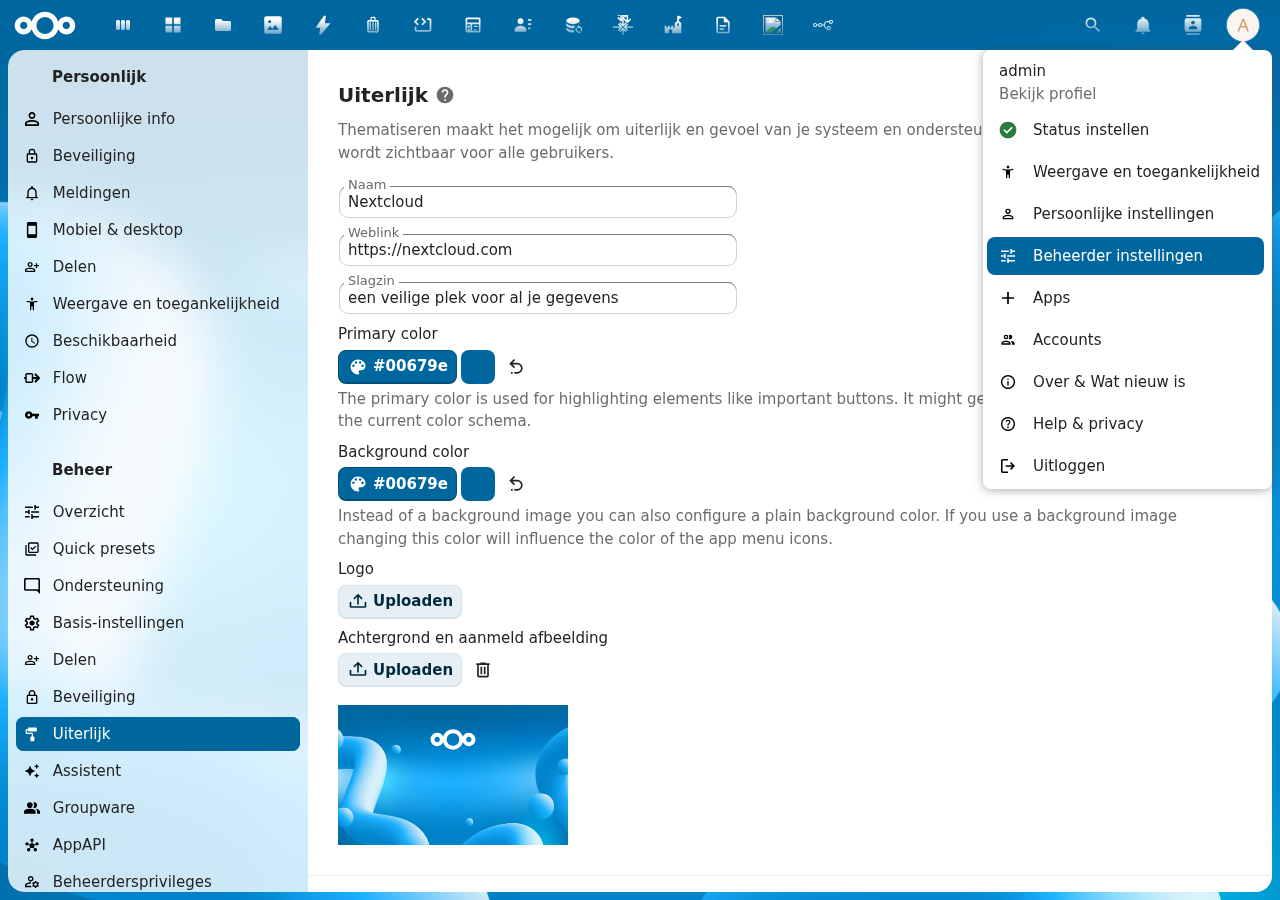
Step 2 — Search for NL Design
In the Apps section, type NL Design in the search bar. The app is listed under the Customization category.
You can also find it directly in the Nextcloud App Store.
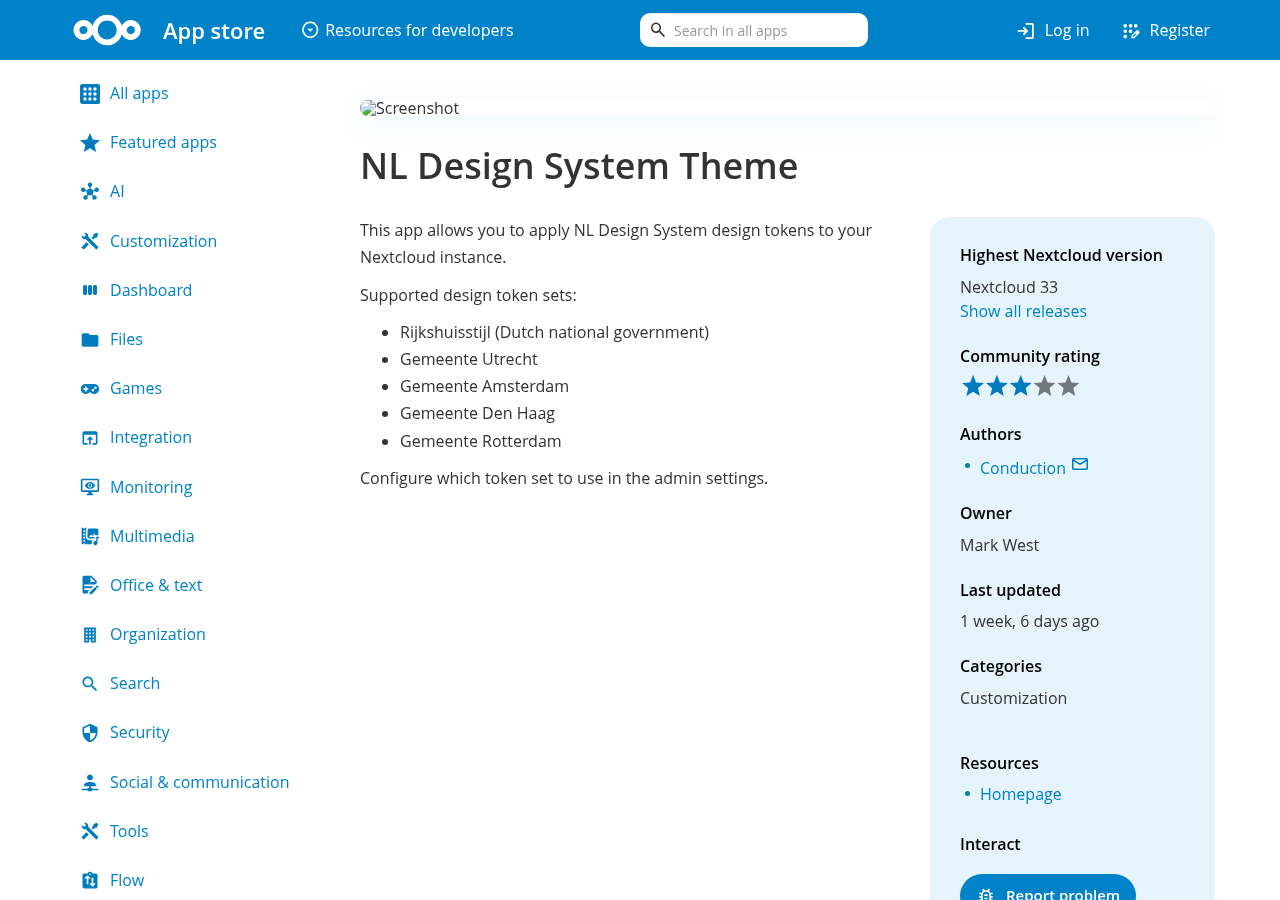
Step 3 — Click "Download and enable"
Click the Download and enable button next to the NL Design app. Nextcloud downloads and activates it automatically.
Once installed, NL Design immediately applies the Rijkshuisstijl (Dutch national government) theme. Your Nextcloud will look different straight away — that's expected!
Step 4 — Go to the settings
After installation, you're ready to choose your organisation's theme. Go to the settings:
- Click your avatar (top-right corner)
- Choose Administration settings
- Click Appearance in the left sidebar
- Scroll down to the NL Design System Theme section
→ Continue to Choose your theme to pick your organisation.
Requirements
- Nextcloud 28 or newer
- You need to be an administrator
Removing the app
If you ever want to remove NL Design, go to Apps, find NL Design, and click Remove. Nextcloud will revert to its default look immediately. Your settings are saved — if you reinstall the app later, your previous theme choice will still be there.